This is an annotated version of the git config –make-git-work-for-you talk that I presented at the Perth GitHub Meetup group where I shared the git configuration options that I use.
Table of Contents
Configuring git
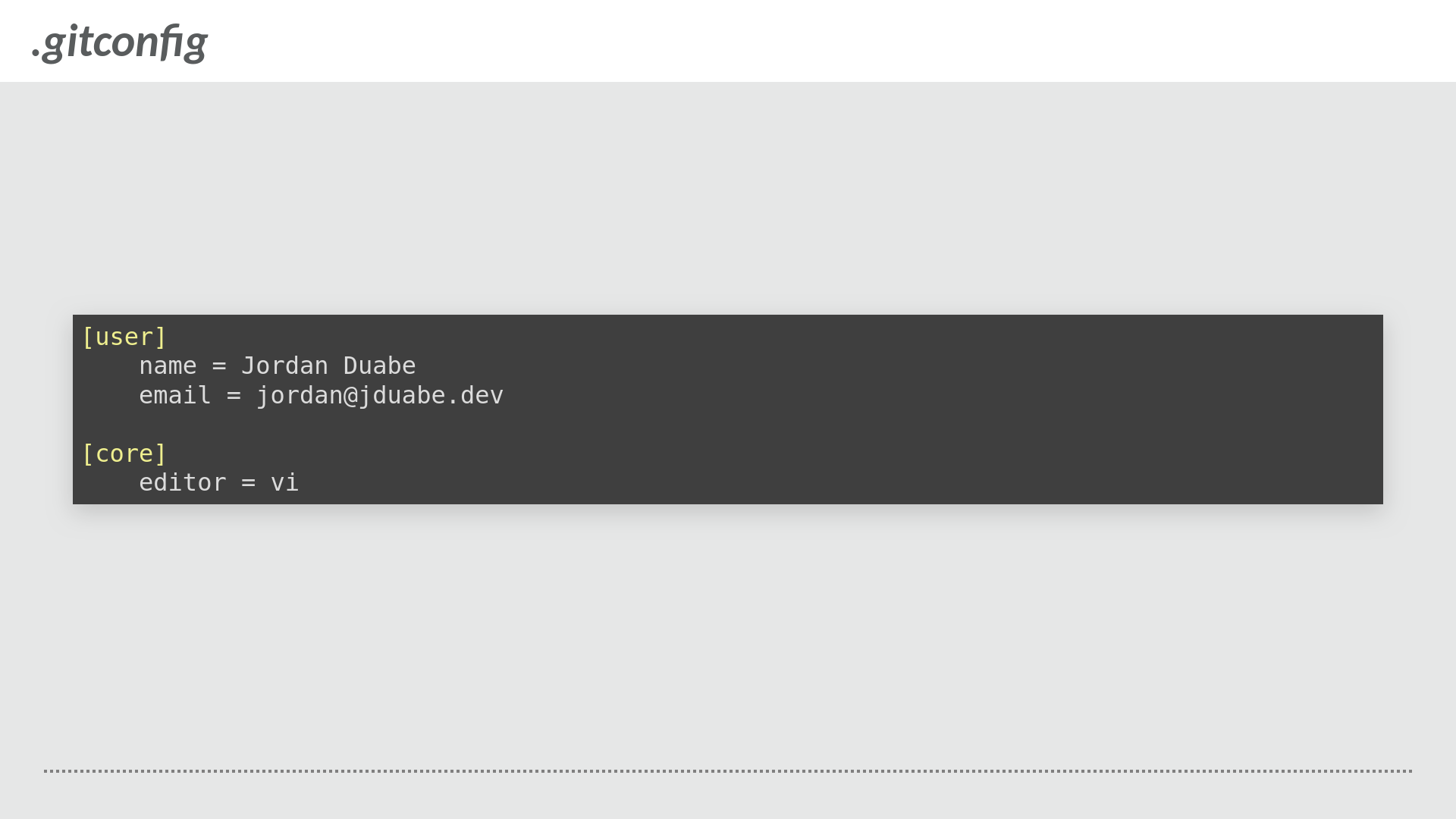
Sample contents of the .gitconfig
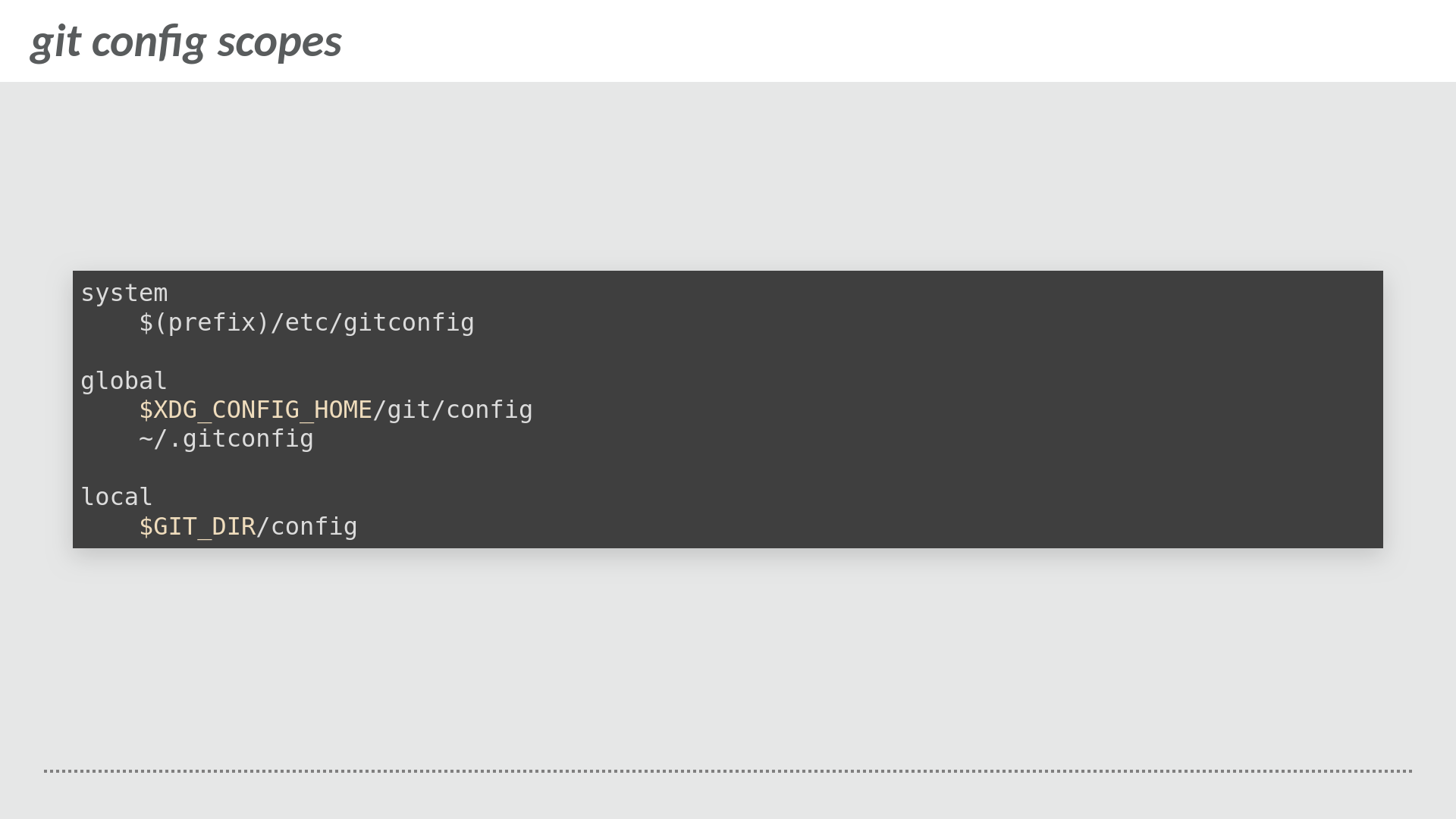
git configuration scopes (system, global, local)
git looks at several (OS-specific) locations where it reads the configuration options:
- system - config options that apply to all the users of an environment
- global - config options that apply to all repositories for the current user (typically where most if not all your config options live)
- local - config options that apply to the local repository
If a config option is present in several locations then the local config wins e.g., local > global > system.
Quality of life config options
Autocorrect
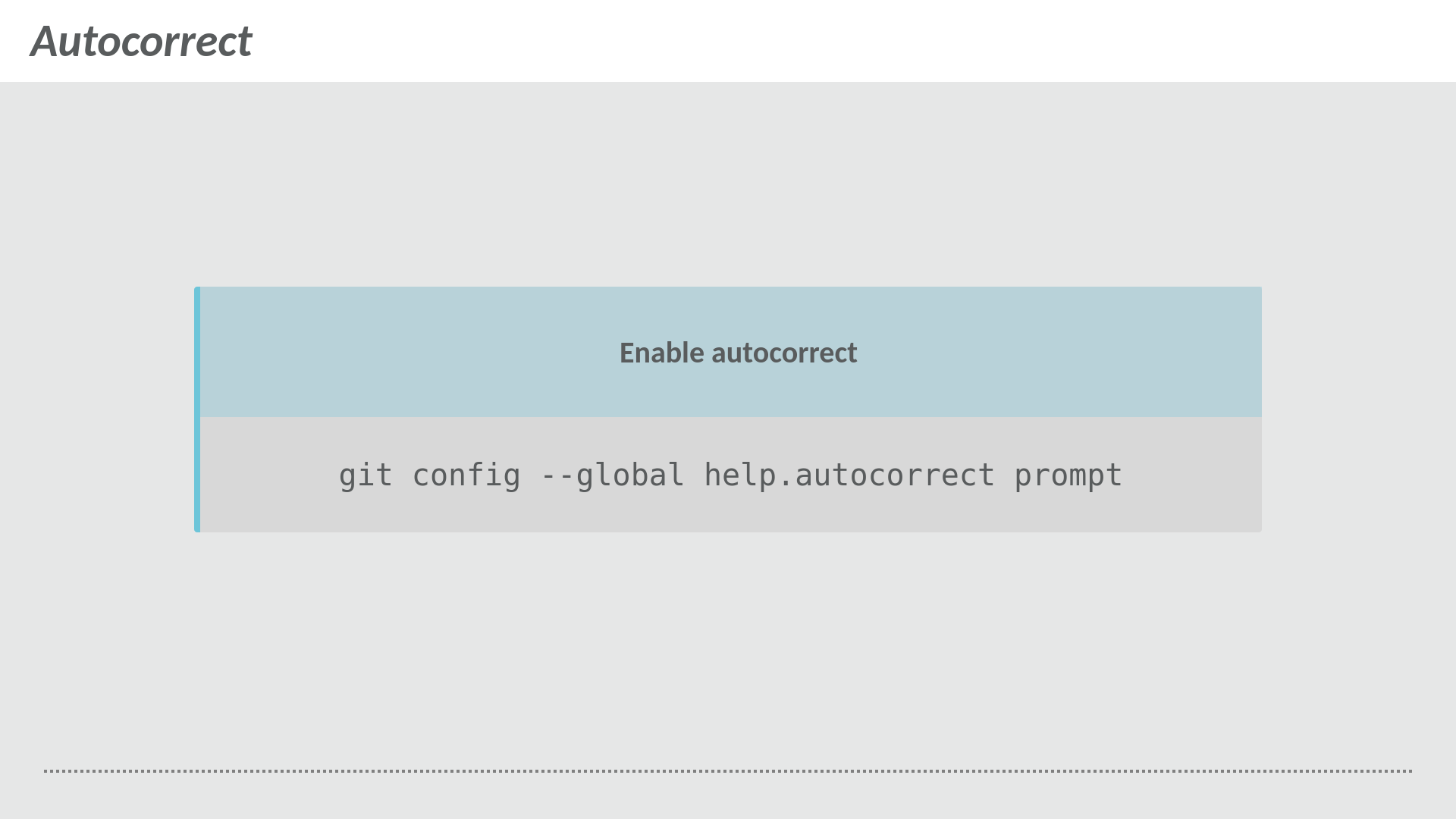
Enable autocorrect
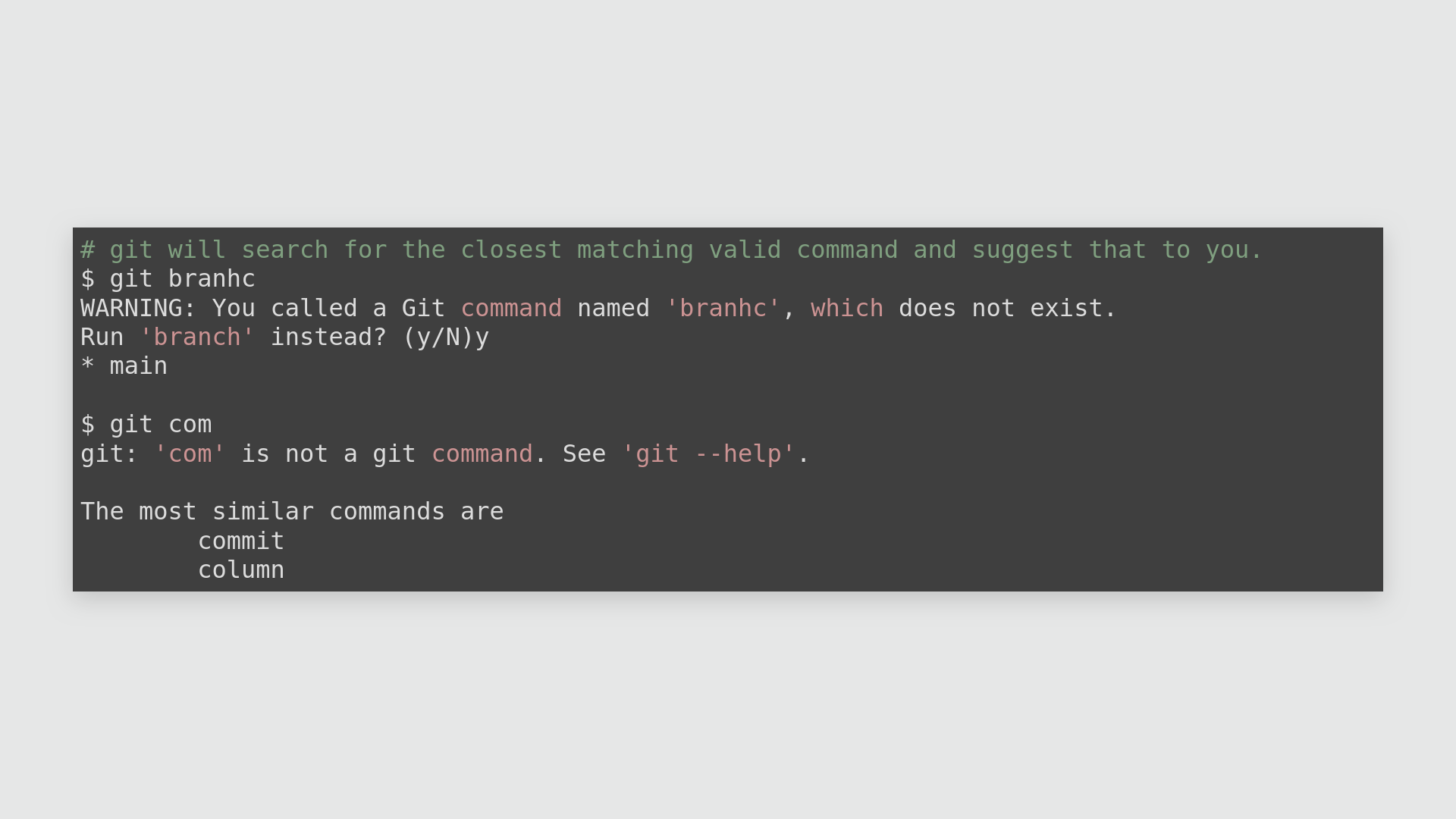
git autocorrect example (using git branhc typo)
By default, if you enter a command that does not exist git will just exit – if autocorrect is enabled then git will search for the closest matching valid command and suggest that to you. If there are multiple possible matches then git lists out those commands and then exits.
There are other possible options other than prompt which I recommend, namely immediate which will automatically execute the matched command, and a delay in deciseconds e.g. setting the value to 10 means that if a possible match is found then it is automatically executed after 1 second.
Aliases
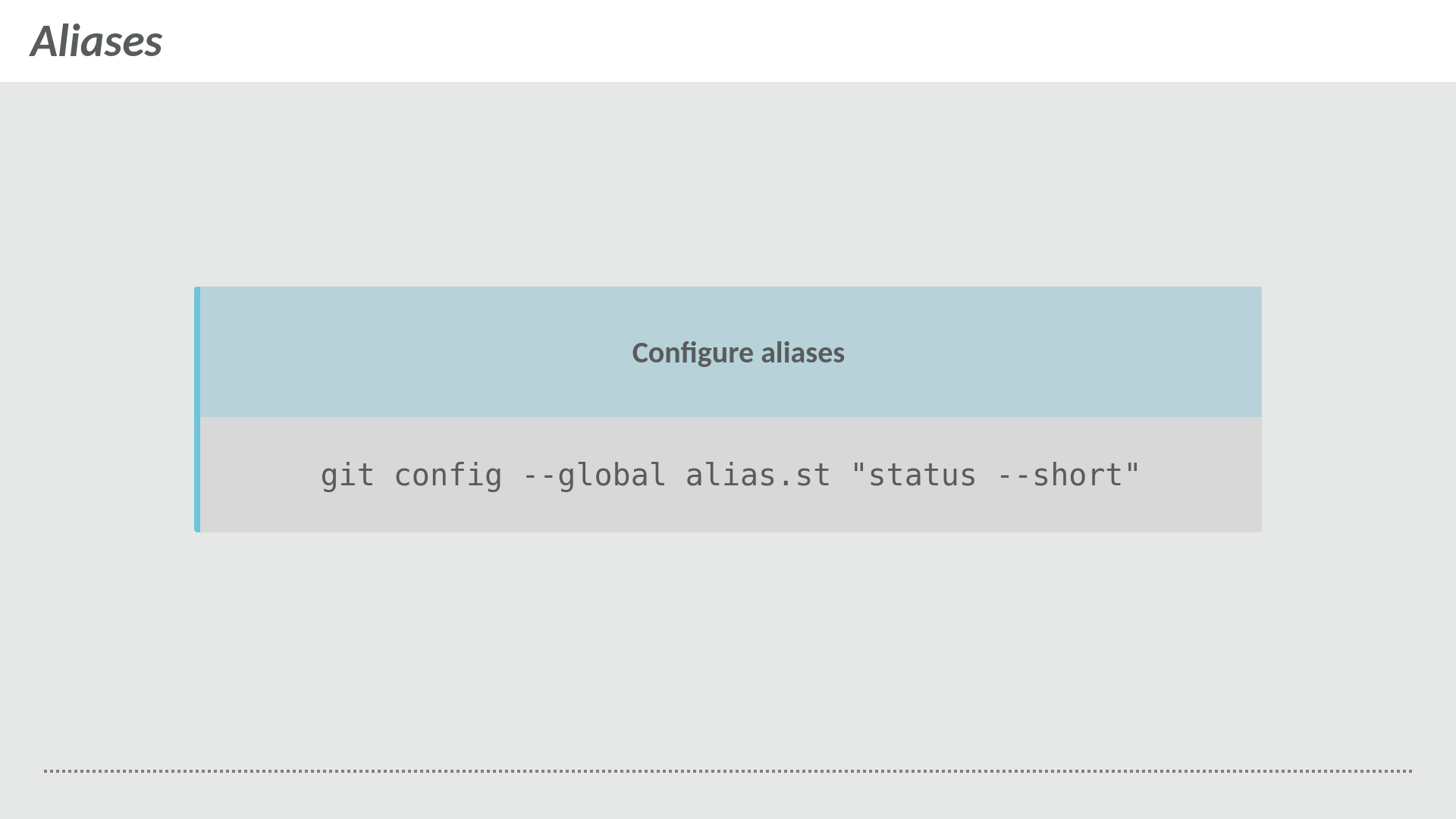
Configuring git aliases with the alias config option
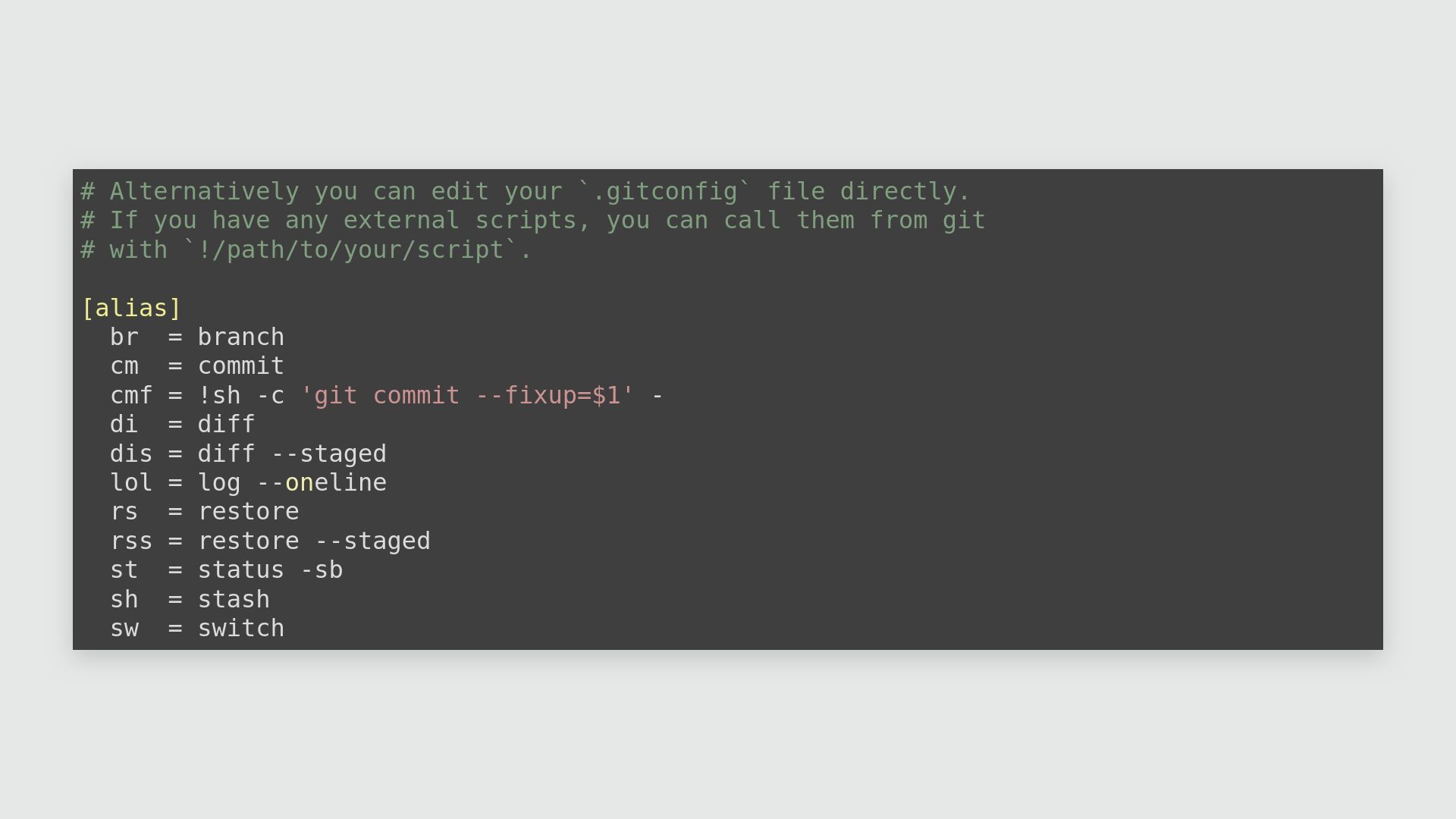
Sample gitconfig with aliases
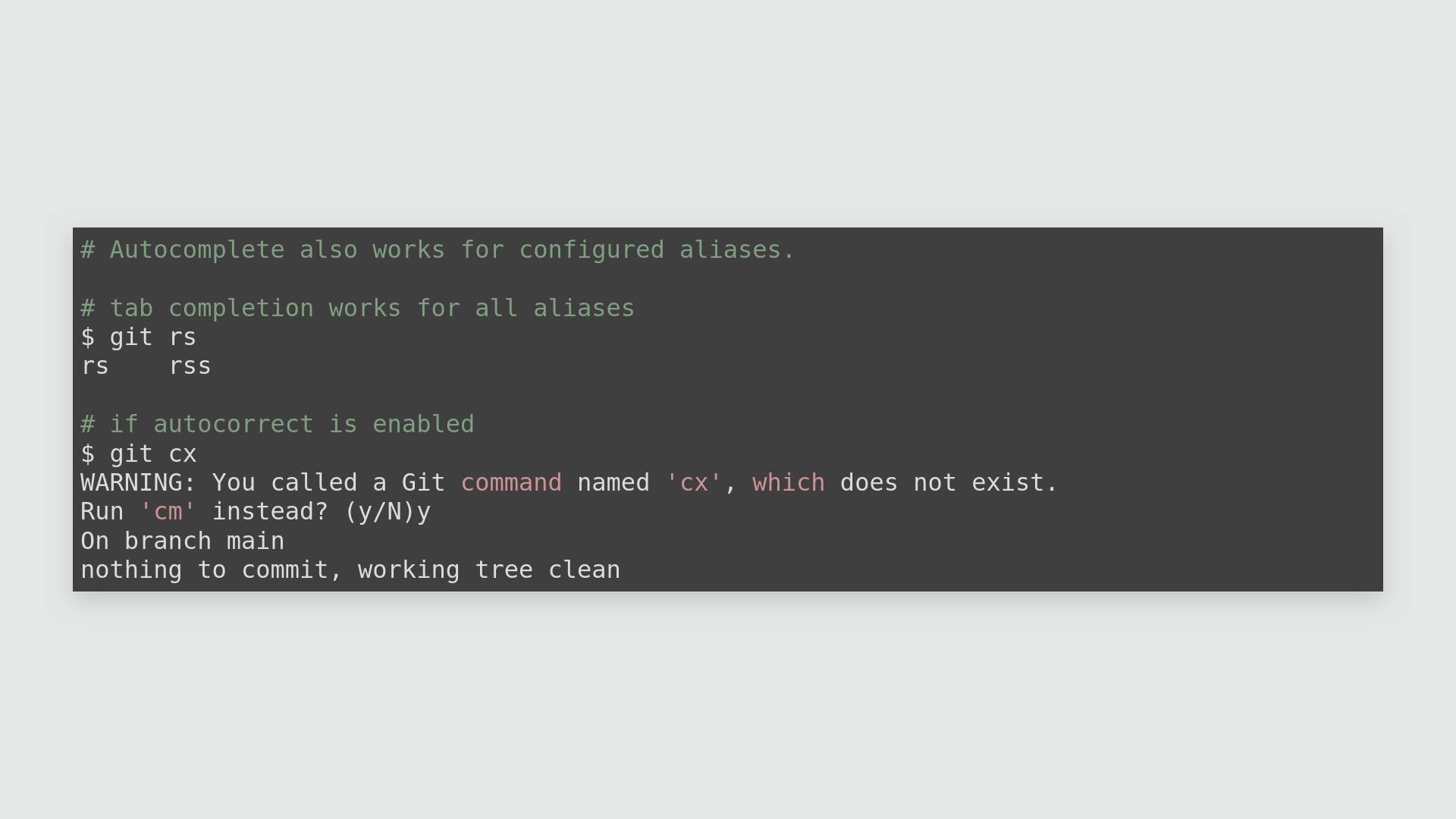
Invoking git aliases and interaction with autocorrect
git also allows you to configure your own custom aliases for frequent commands that you use as well as calling external scripts with !/path/to/external/script.
The registered aliases behave as valid commands which means that autocorrect will also work for them.
Sorting
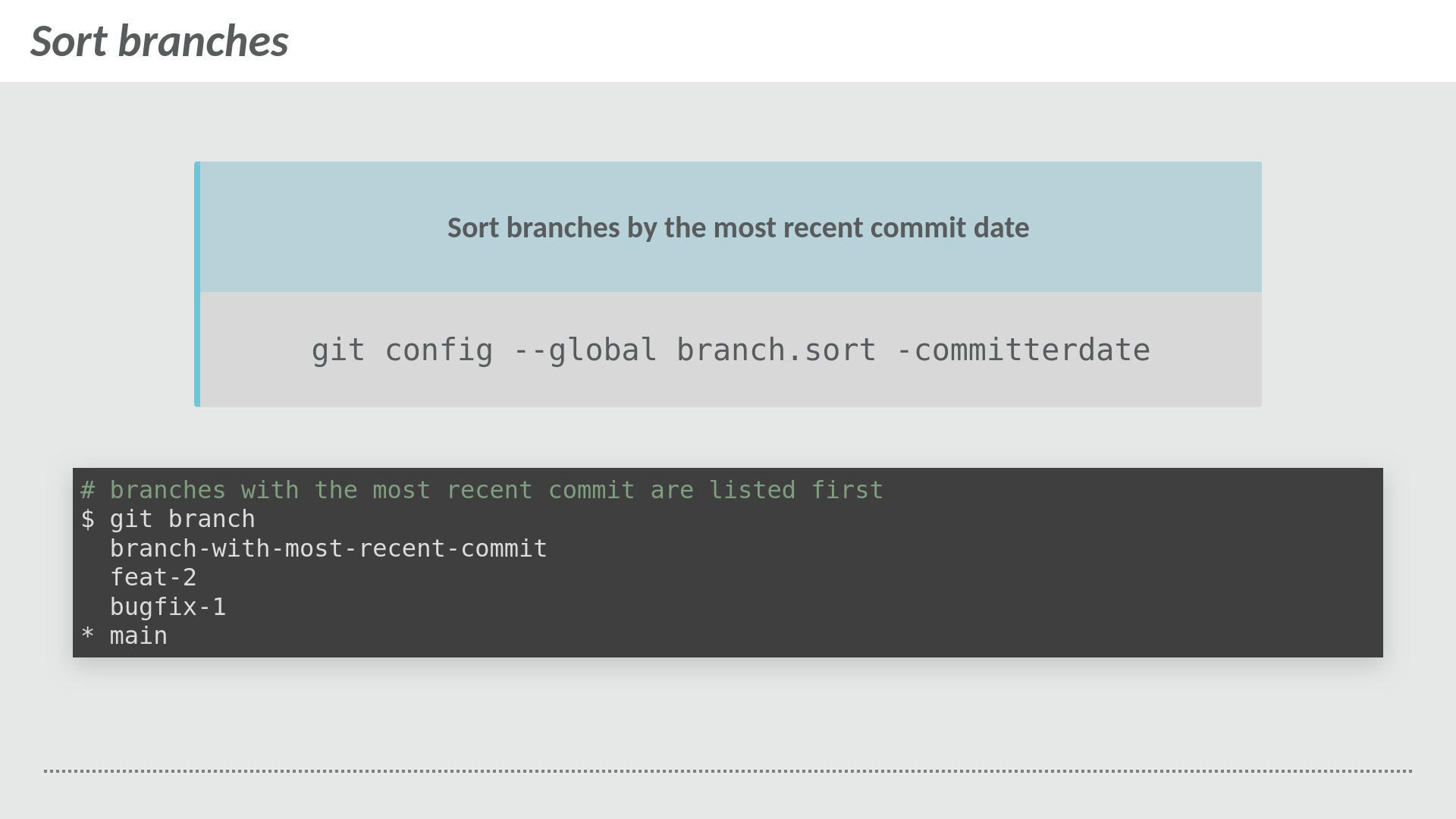
Sorting git branches by commit date
By default, branches are sorted alphabetically. Sorting branches by committer date in descending order sets the output of git branch to show the branches with the most recent commit at the top, this is useful for quickly checking which of your local branches are possibly stale and can be removed.
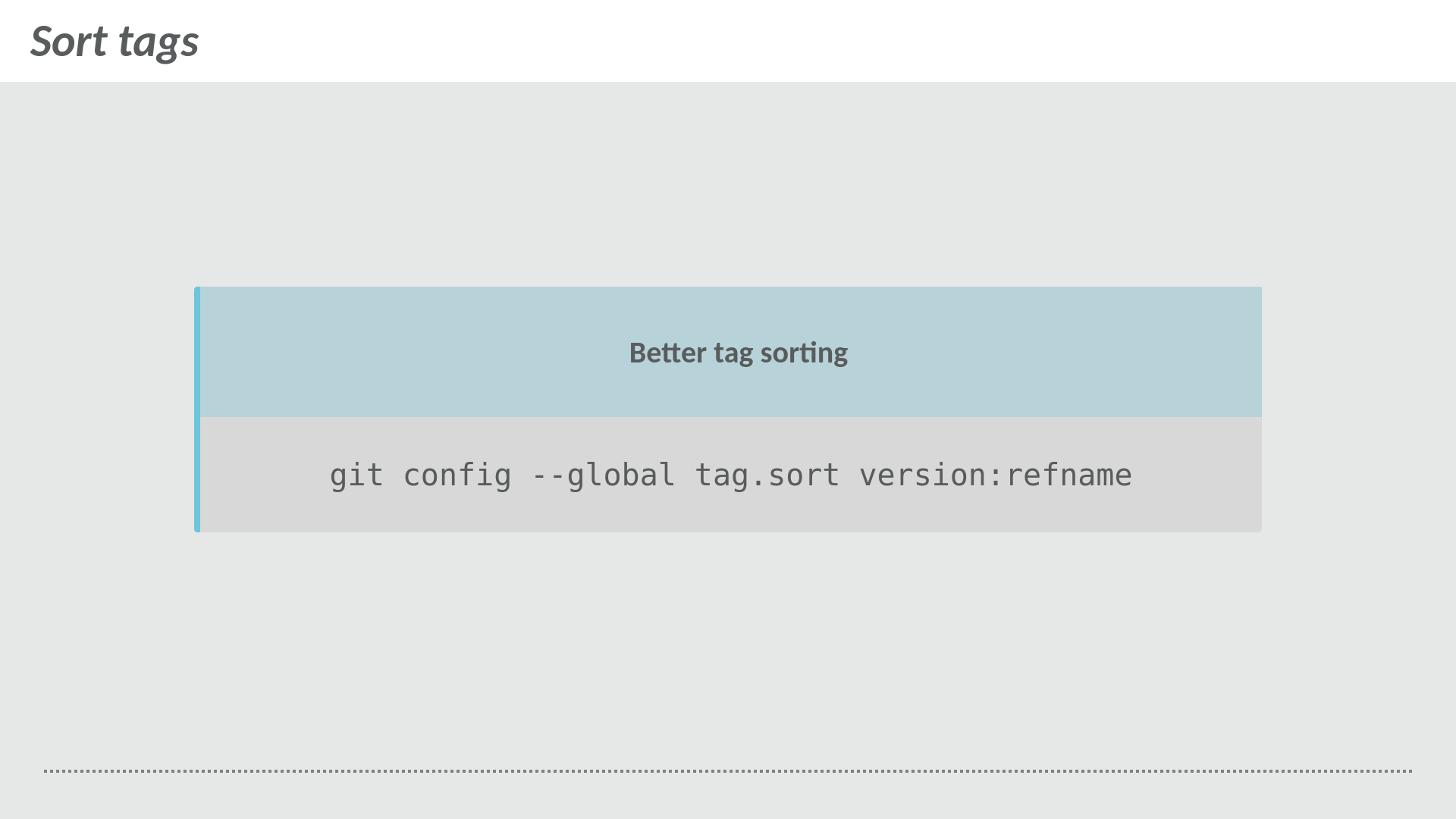
Sorting tags
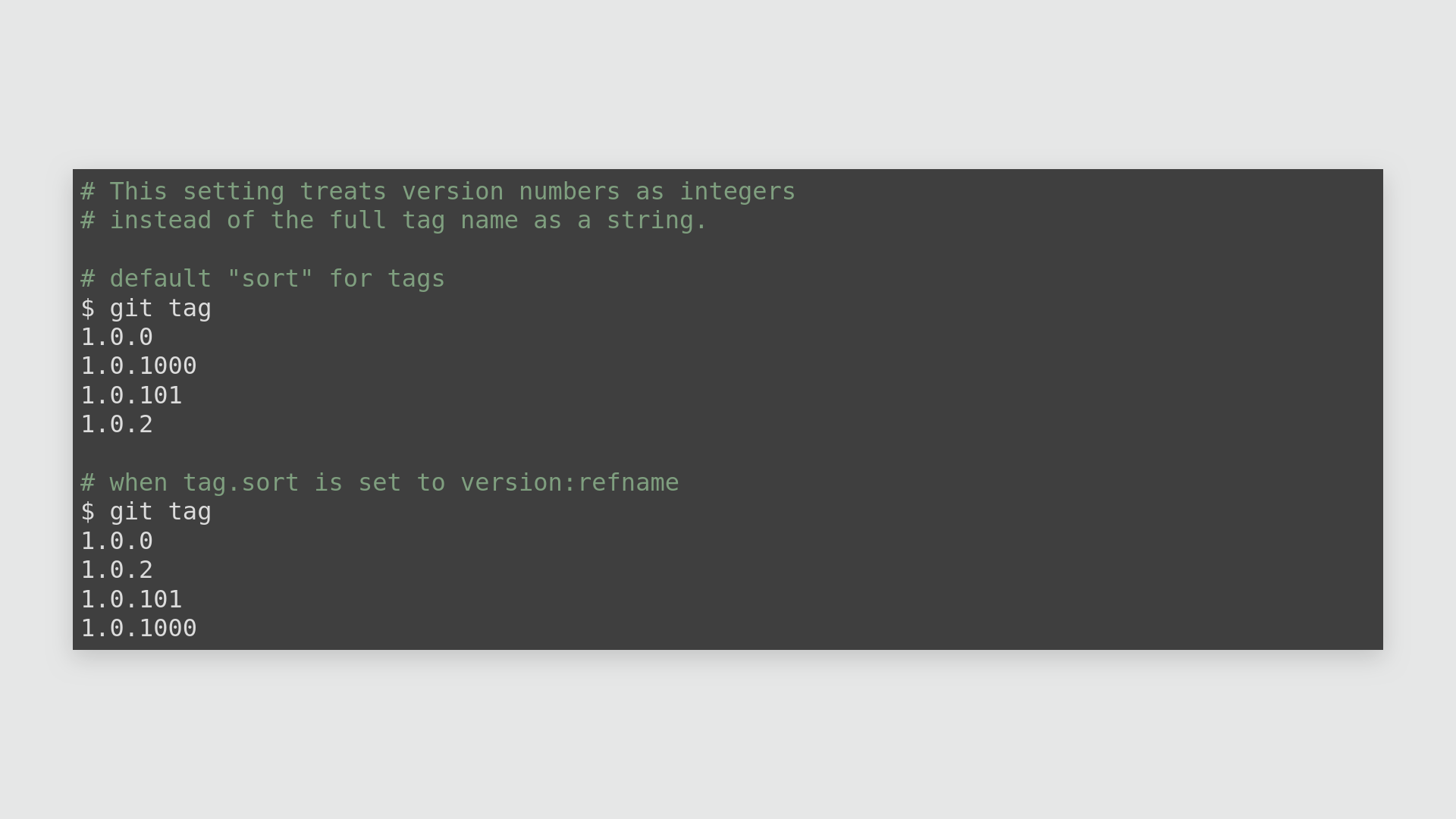
Sorting tags with version:refname
Tags are generally used to mark releases and commonly follow the semantic versioning specification which are in the format MAJOR.MINOR.PATCH e.g. 1.0.0.
By default, tags are treated as a string and are sorted accordingly which leads to unexpected results – by specifying version:refname tags are treated as numeric values.
Better fetch, diff, commit, push
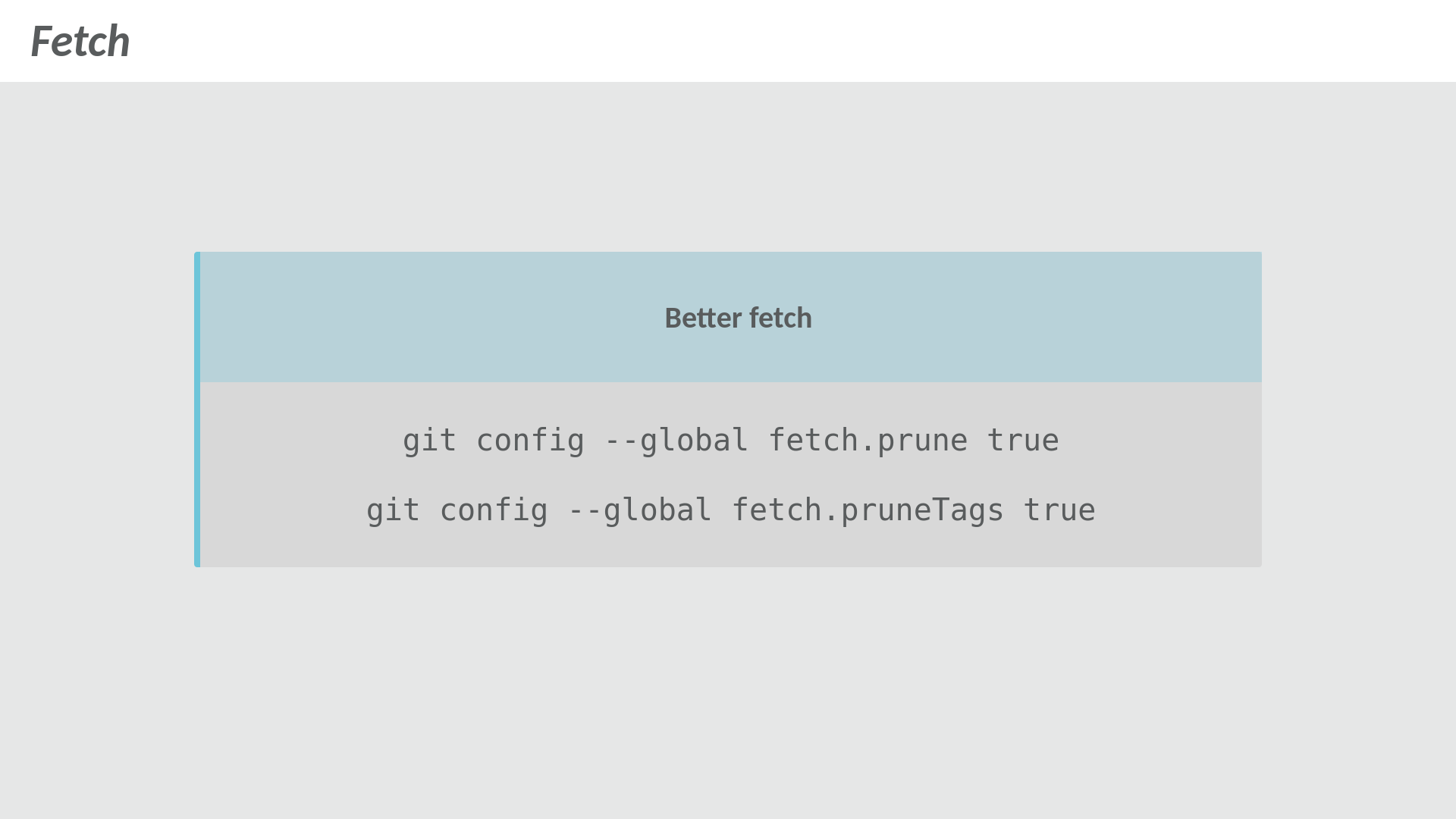
git fetch prune settings
Deletes references to all branches and tags that do not exist on the remote repository, no local branches or tags are deleted.
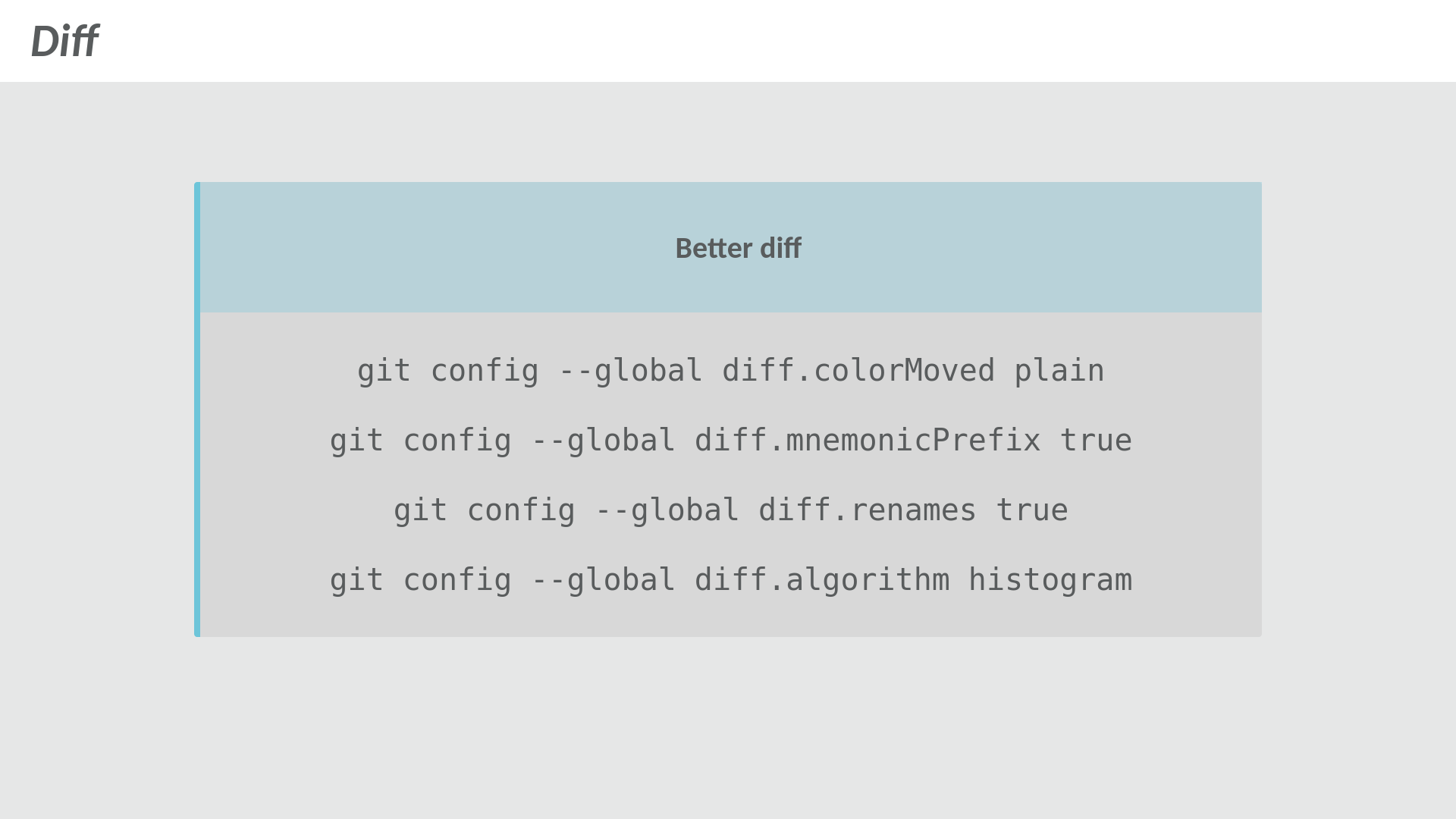
Git diff configuration options for color moved, renames, mnemonic prefix, and algorithm
diff.colorMoved displays moved lines in a different color from added/deleted lines while diff.renames detects if a file has been renamed.
diff.mnemonicPrefix instructs git to show a different prefix (defaults to a/, b/) depending on what is being compared e.g., git diff will use i/ and w/ as it compares (i)ndex and (w)ork tree.
There are 4 diff algorithms that are shipped with git: myers (default), minimal, patience, and histogram. This discussion in StackOverflow has more details on the differences (ha!) of these algorithms.
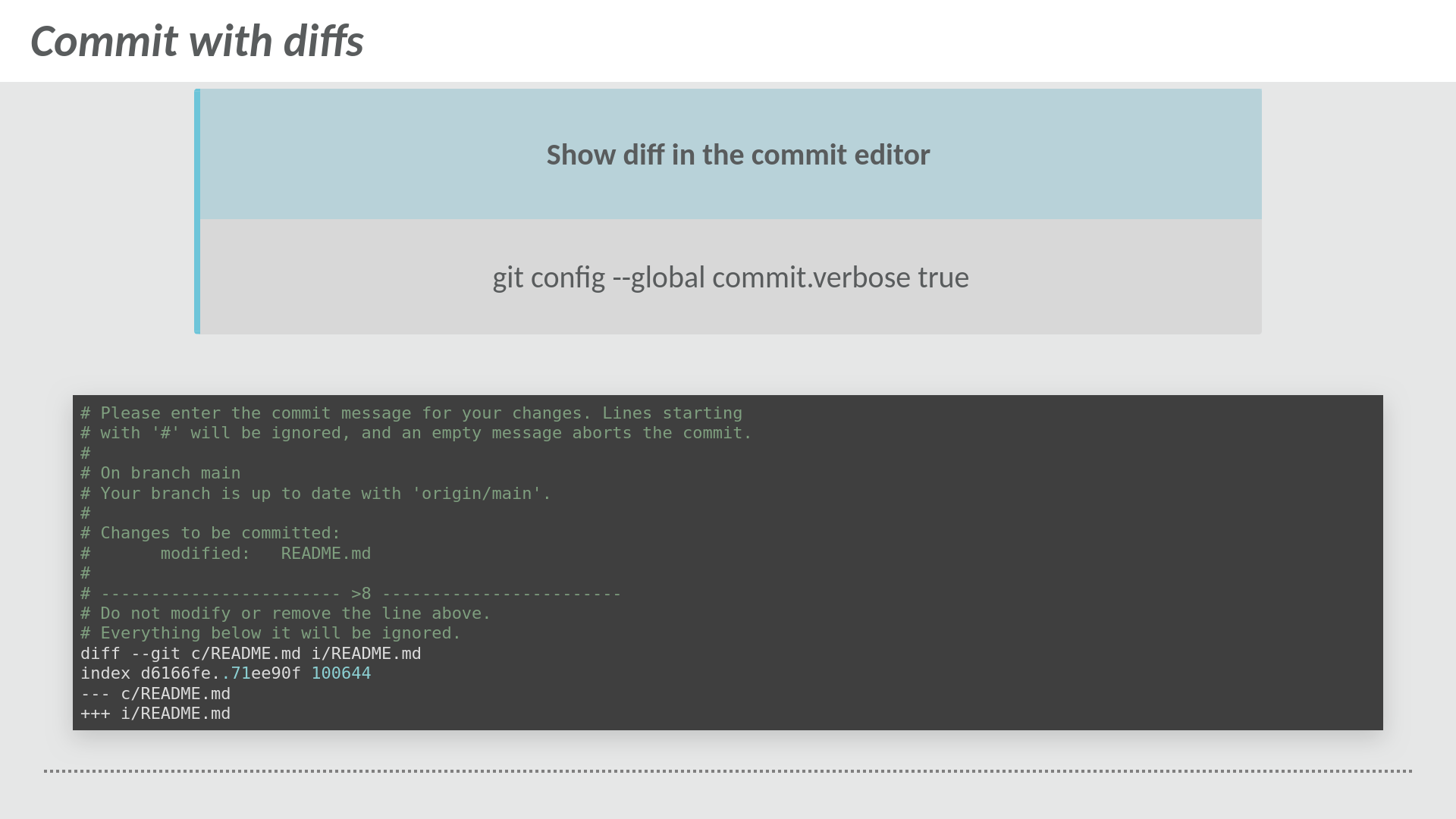
git verbose commit
This setting will append the diff output to the commit editor.
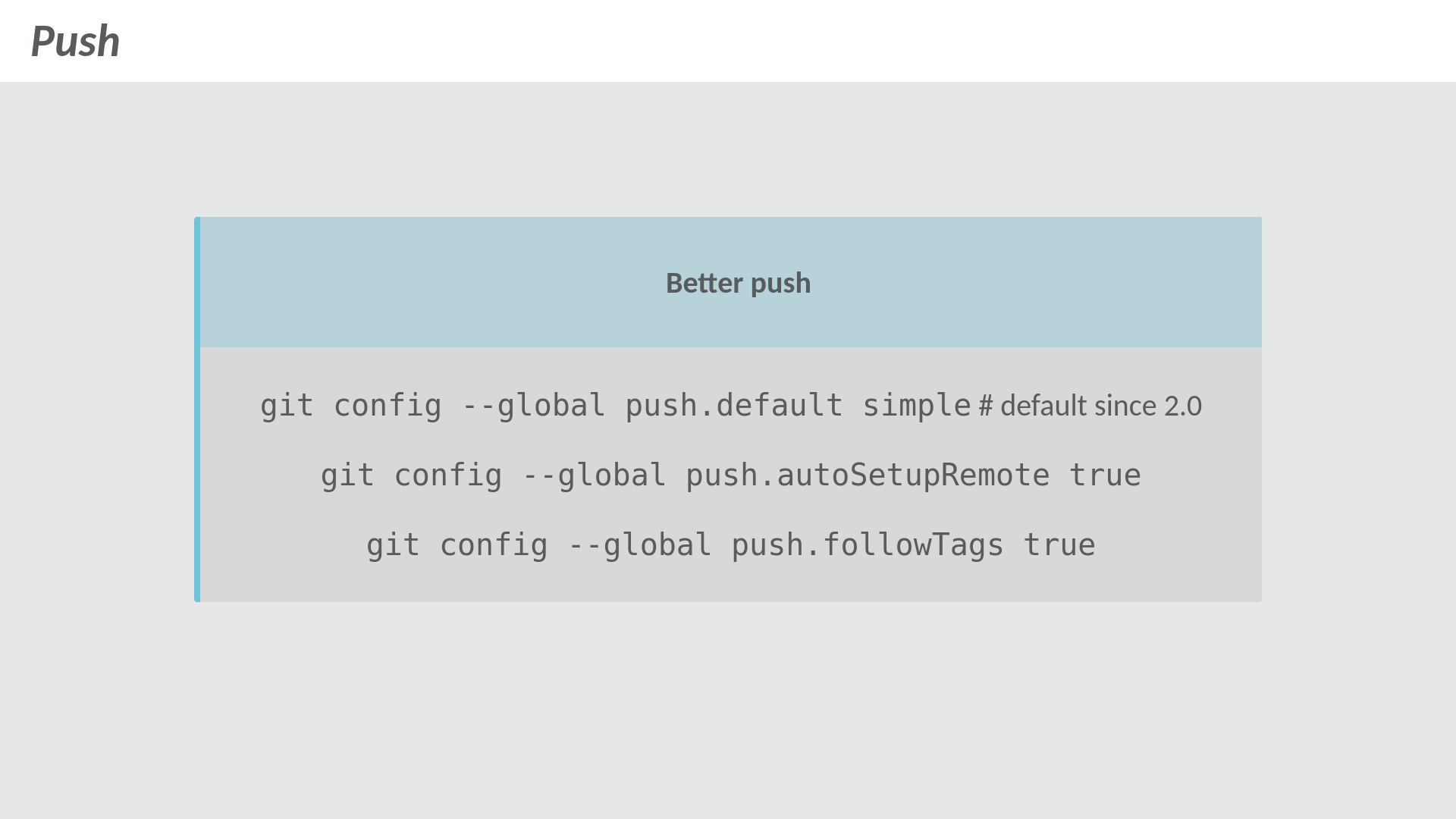
Git push configuration options: default, followTags
Simplifies pushing to just git push in most cases.
push.default = simple will automatically push commits from your local branch to the branch with the same name on the remote. This is the default behavior since v2.0.
push.followTags will push tags together with commits without the need of specifying the --tags option.
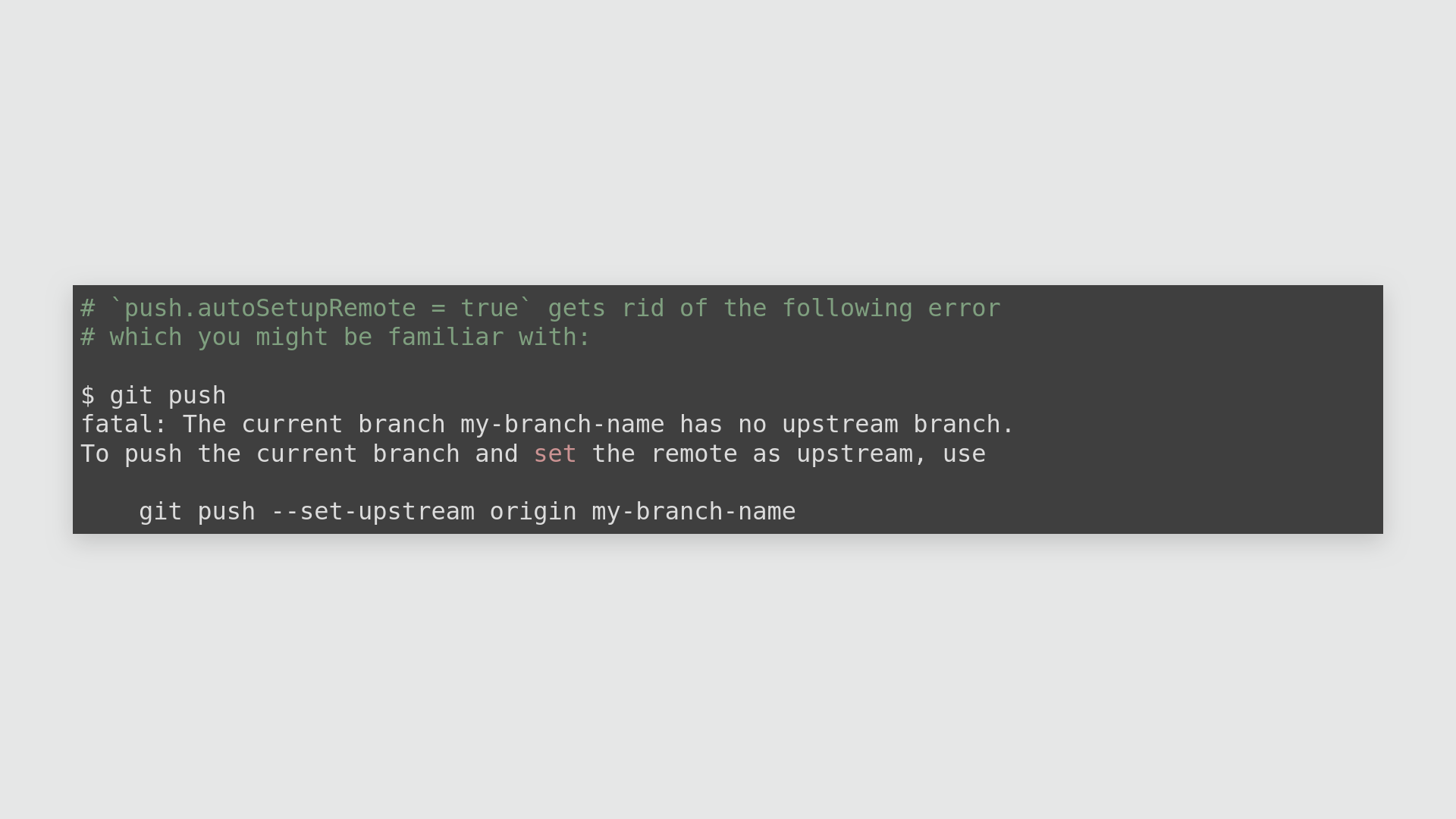
git push.autoSetupRemote error message
push.autoSetupRemote will automatically create a branch in the remote repository if it does not already exist and setup a remote tracking branch on your local repository.
Global gitignore
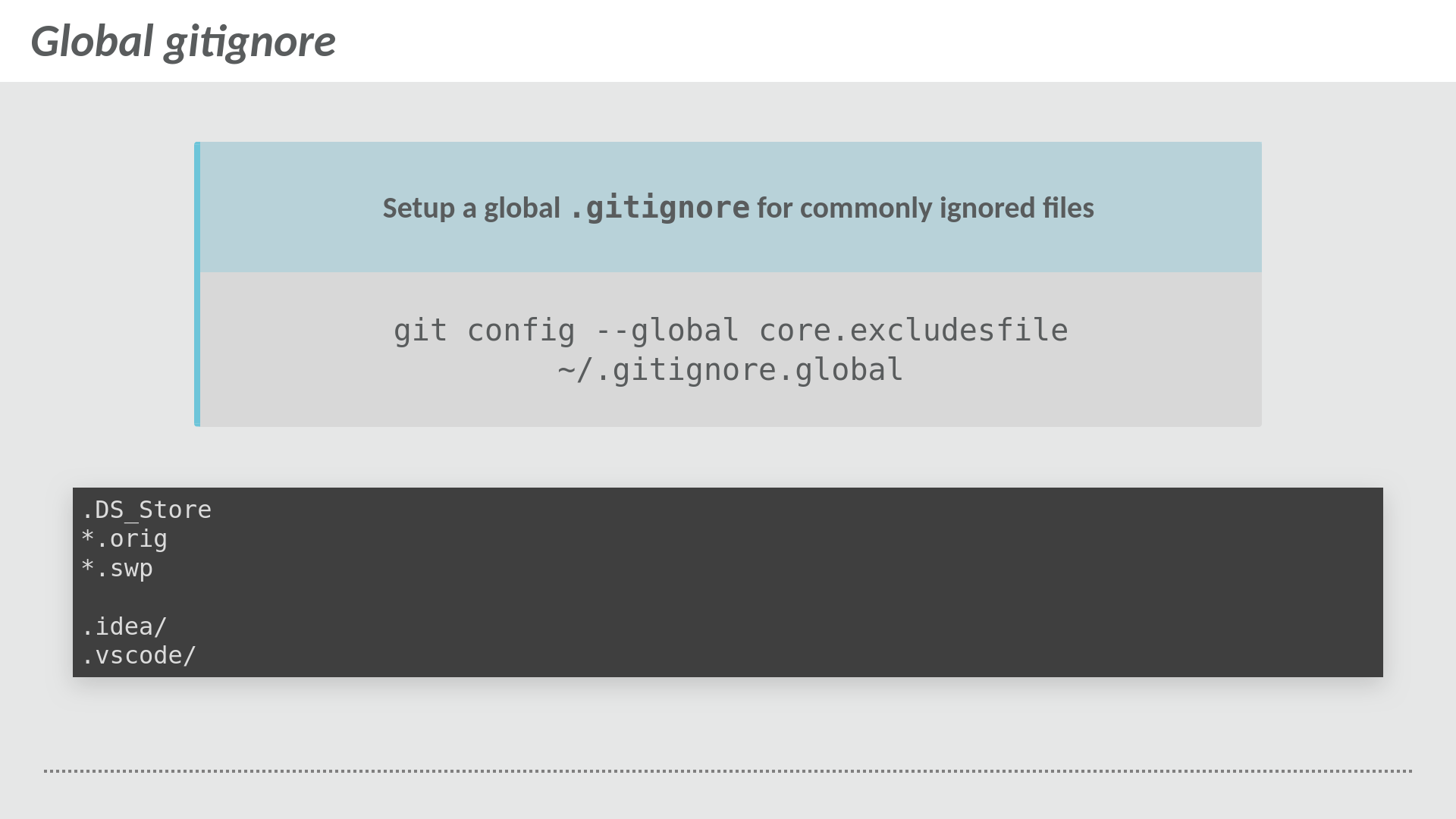
git global gitignore
Similar to a .gitignore but is applied across all repositories, the configured entries here should be generic e.g., swap files, editor configuration, and other generated files.
Workflow-specific config options
External tooling: delta
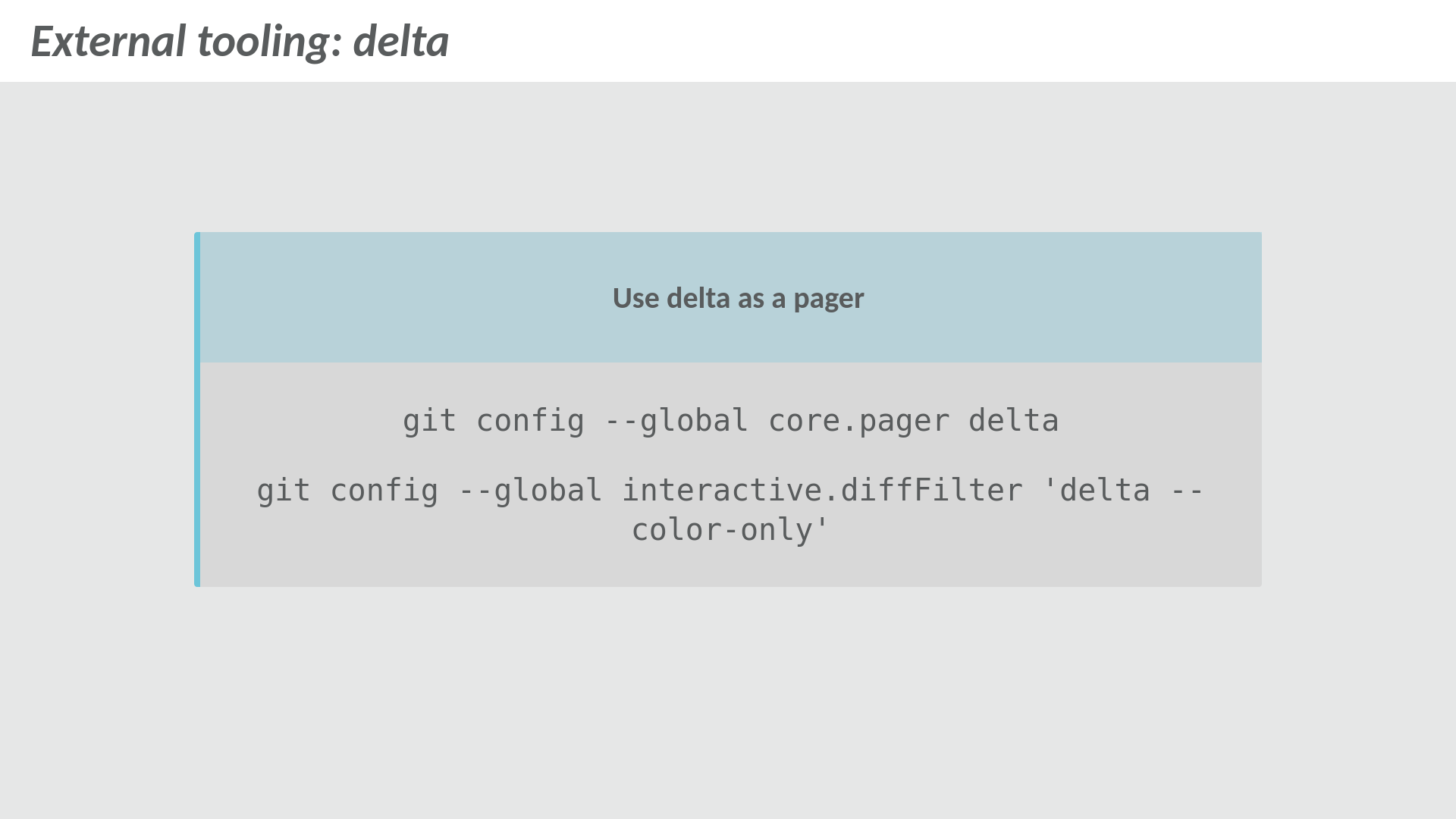
delta - syntax-highlighting pager for git
delta configuration in gitconfig
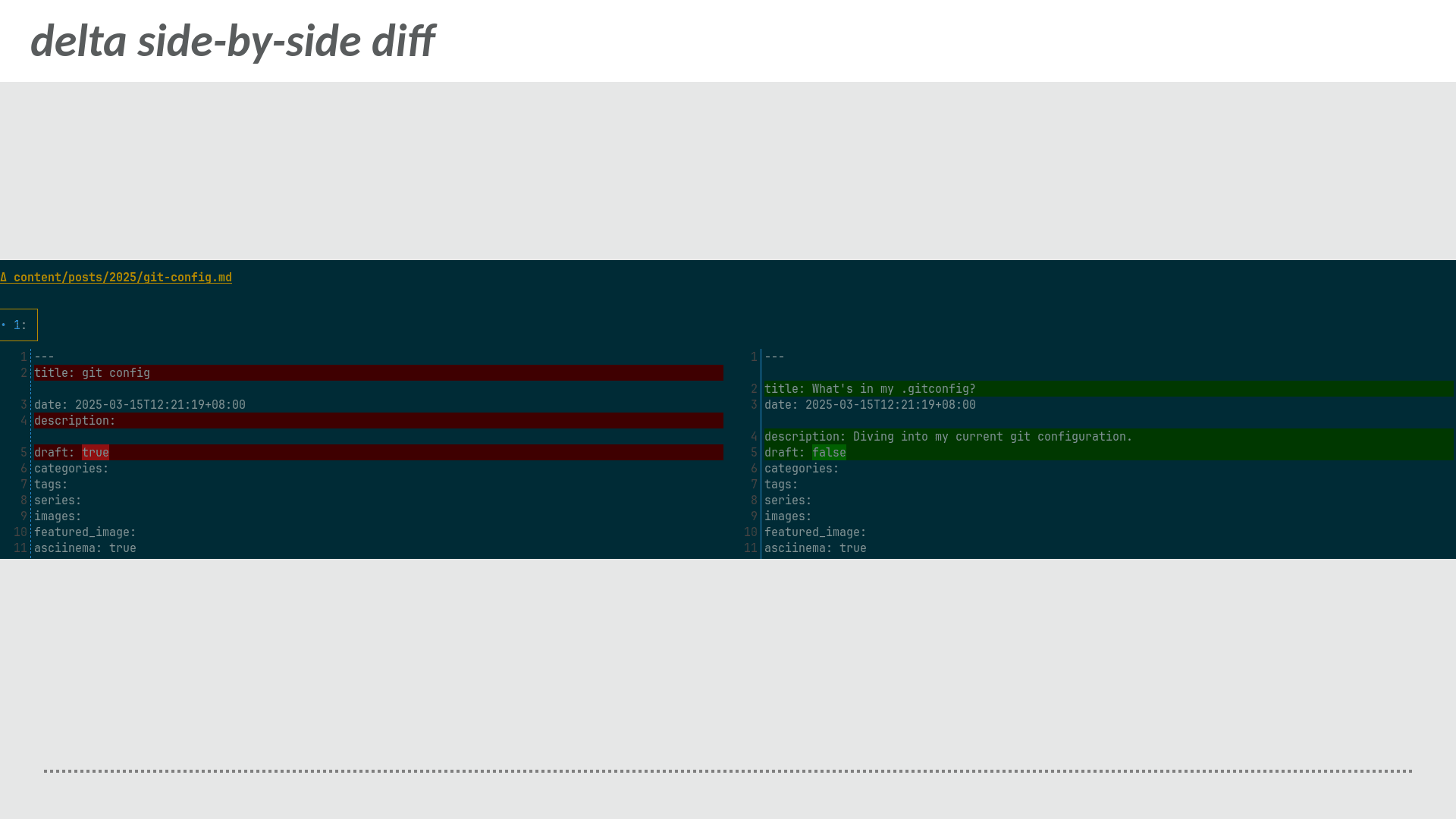
delta is a syntax-highlighting pager for git diff, grep, and blame output.
Rebase
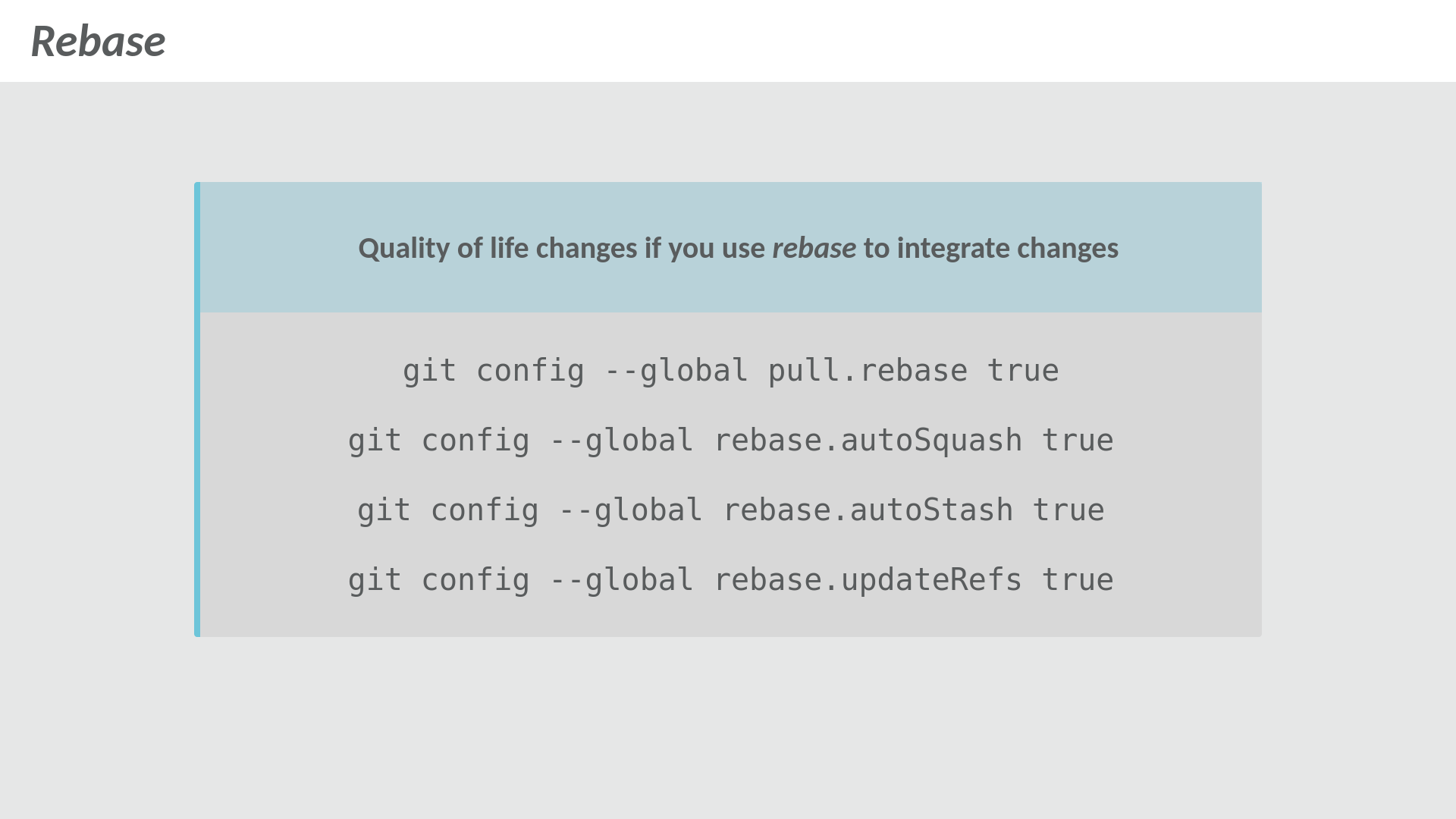
git rebase settings
pull.rebase tells git what to do when you run into conflicts when pulling changes.
rebase.autoStash automatically stashes your working tree changes (if there are any) when the rebase operation starts and applies it after the operation ends.
rebase.updateRefs automatically force-update any branches that point to commits that are being rebased.
rebase.autoSquash used in combination with fixup commits allows you to amend a series of commits automatically to maintain a clean history.
Demo: Fixup commits with autosquash
Fixup commits mark a target commit where the new commit will be squashed together, otherwise you’ll have to manually move commits around when performing an interactive rebase.
Reuse Recorded Resolution
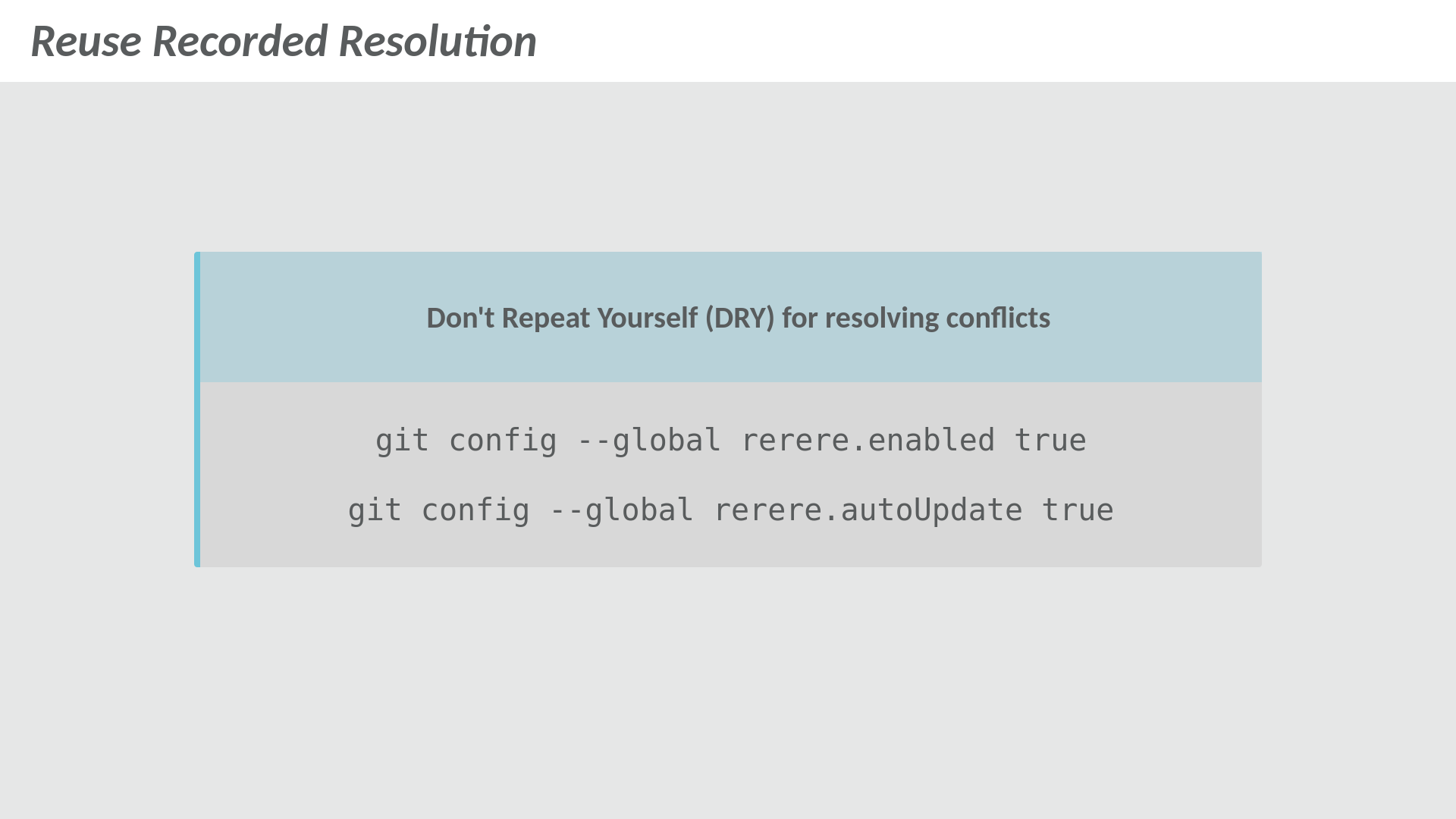
Reuse Recorded Resolution (rerere) configuration
This setting is useful if you’re rebasing multiple commits and run into the same conflict again and again.
With rerere.enabled set, git will remember how to resolve a conflict and reuse it when it encounters the same conflict.
rerere.autoUpdate automatically stages the changes that resulted from the resolution.
Signing commits and tags
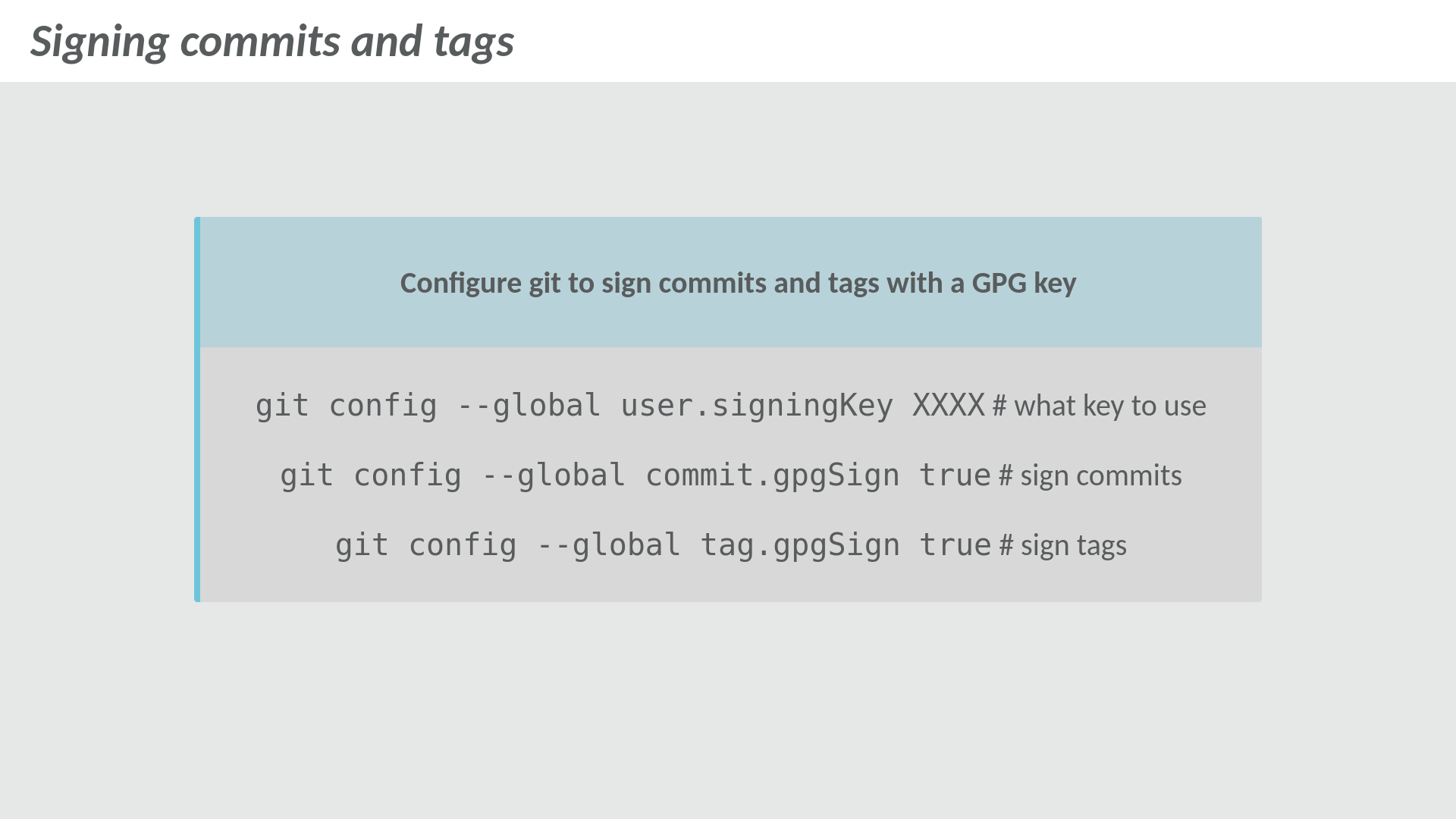
Git commit and tag signing configuration
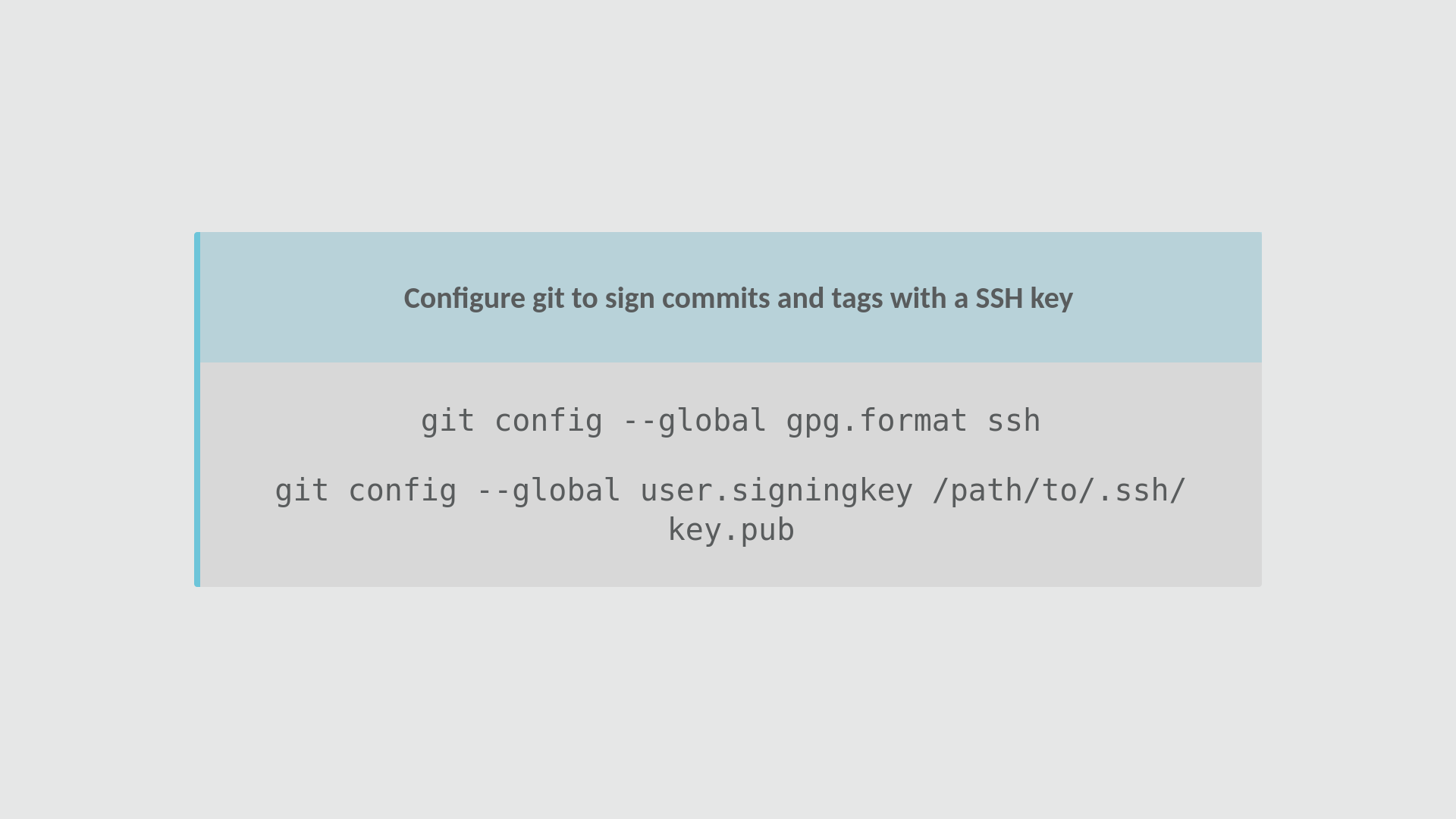
SSH signing configuration for git
You can use either GPG or SSH to sign tags and commits locally.
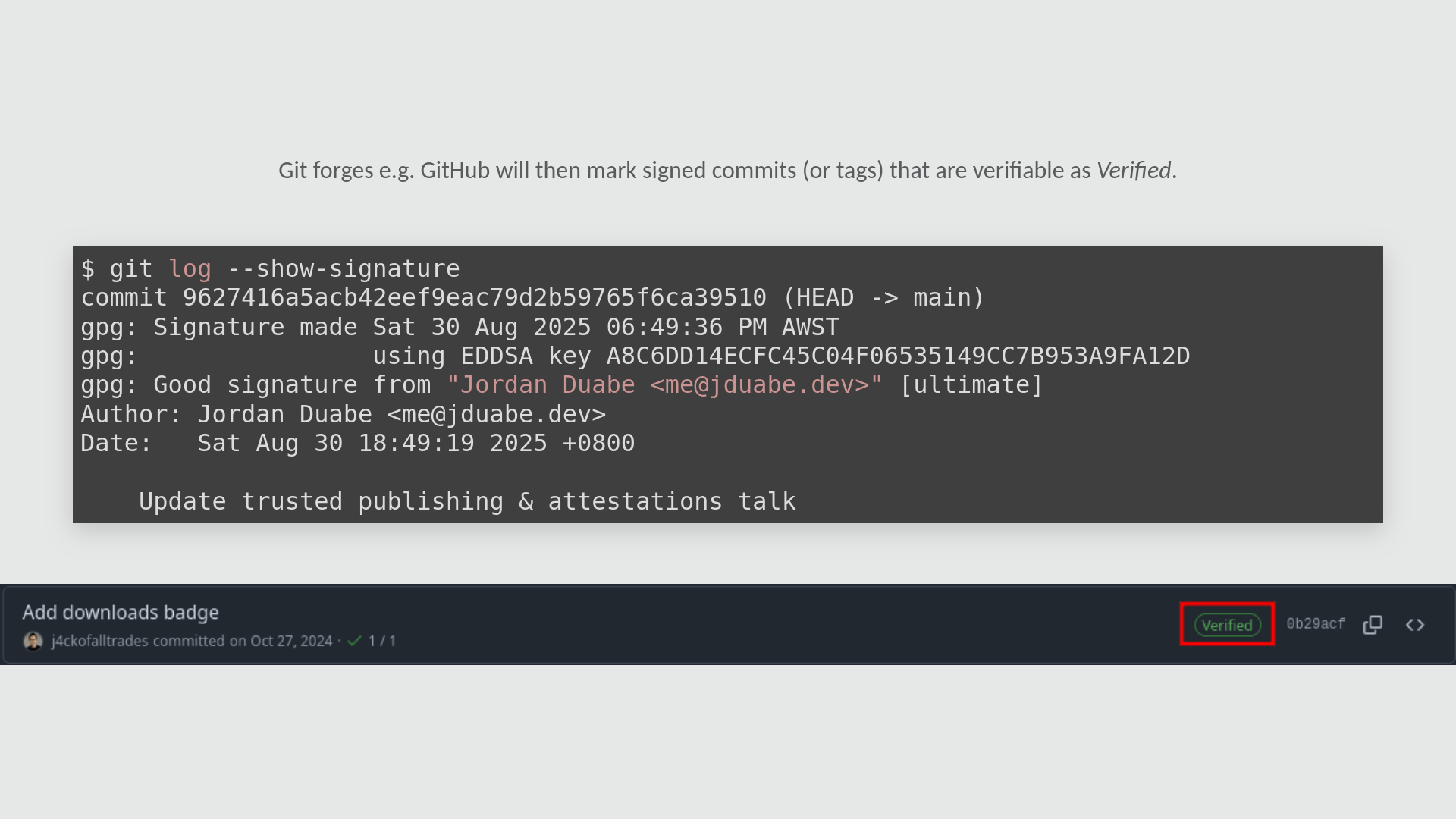
GitHub verified commits badge
Forges like GitHub will display signed commits as Verified. Organizations may also require or enforce rules where unsigned commits are rejected.
Conditional Includes
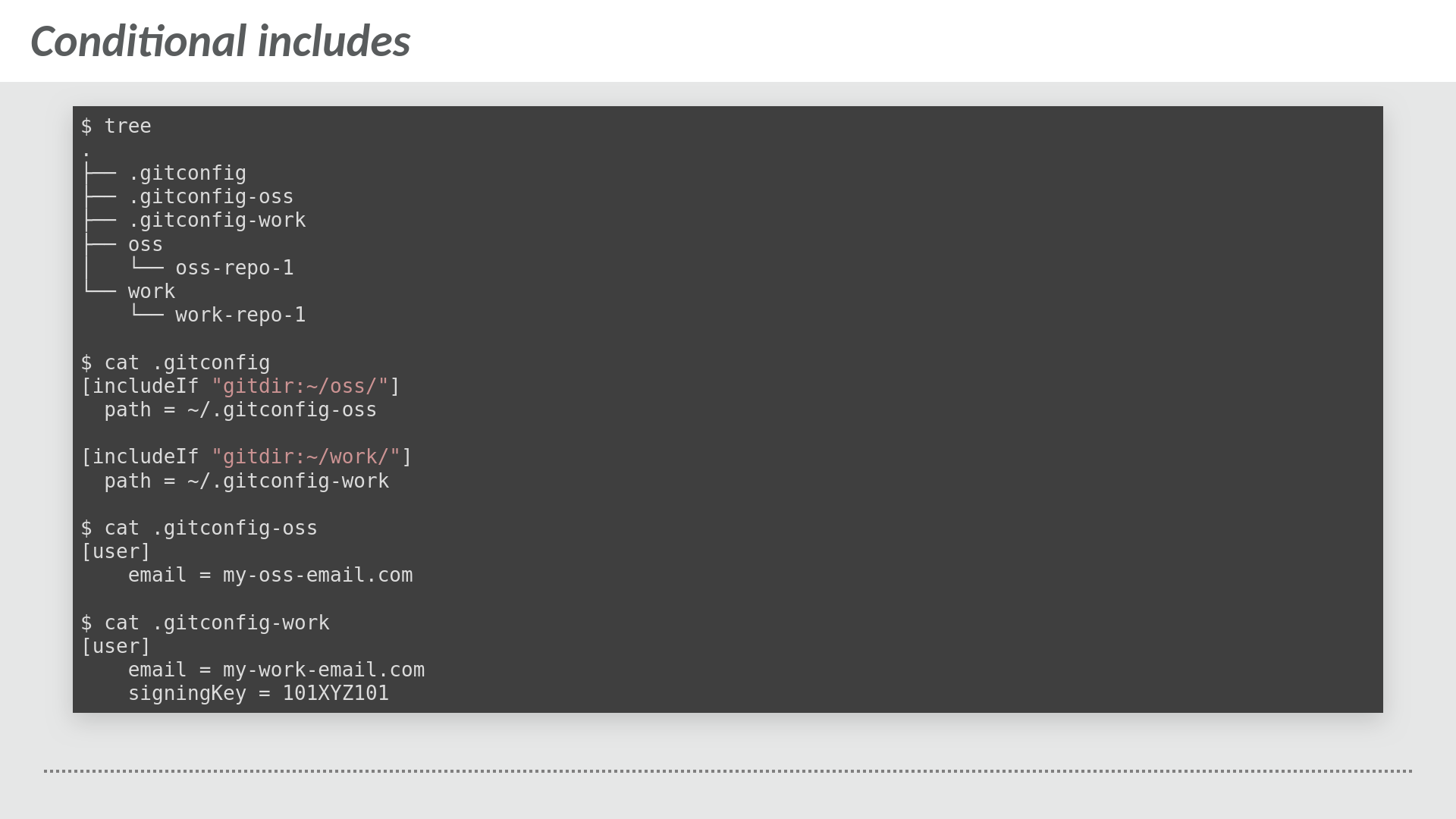
Conditional includes in gitconfig
In cases where you want or need a separate set of configurations that apply to multiple repositories, gitconfig ships with an includeIf directive where you can conditionally include git settings if certain conditions are met.
An example scenario is that you have personal and work repositories on the same machine and you want to associate commits made to these repositories to different emails.
Resources & Takeaways

Resources for learning more about git configuration
A list of recommended reading and resources:
The best configuration is the one that works for you.